




















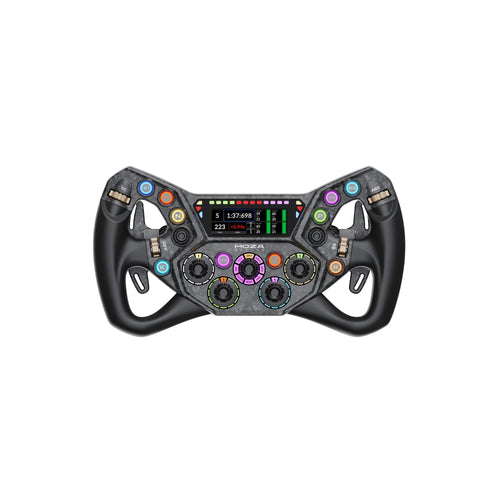






GT Neo User's Guide

Introduction
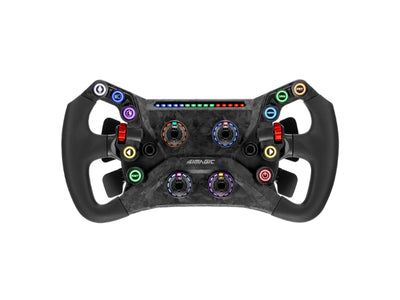
If your Simagic GT Neo steering wheel isn’t connecting or responding properly in SimPro Manager, this guide will help you troubleshoot common issues. Each step below is designed to restore full functionality and communication between your GT Neo and Simagic base.

Connecting the GT Neo Steering Wheel
Q: "SimPro Manager does not show my GT Neo steering wheel as connected."
A: After securely attaching the wheel to the base, use the Quick Frequency Pairing feature to establish a connection.
Quick Frequency Pairing Steps:
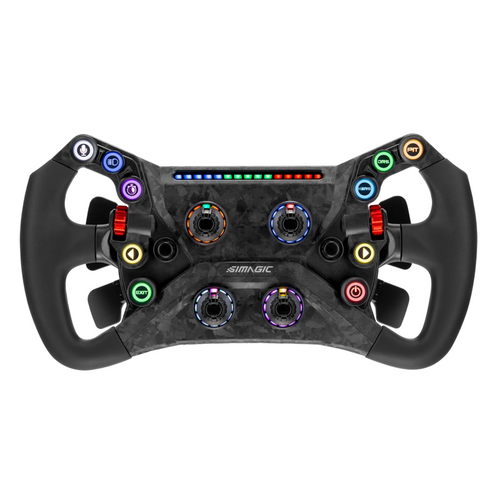
- Press and hold the two buttons closest to the RPM light on the inner side of the steering wheel.
- Hold until the button lights turn blue, placing the wheel into frequency pairing mode.
- Once the lights return to normal, open SimPro Manager and confirm the connection status.
If pairing fails, connect the wheel via the supplied USB-C cable:
- Connect the wheel to your PC using the USB cable.
- When SimPro Manager shows the wheel as connected, click the Gear icon → Set as current base channel.
- Disconnect the USB cable and reattach the wheel to the base. Wireless communication should now function normally.
Using the Absolute Value Encoder Function
Q: "How do I use the absolute value encoder function on the GT Neo steering wheel?"
A:
- Press the 7-way funky switch on the left side of the steering wheel.
- Turn the knob clockwise once to enter absolute value mode.
- To return to standard incremental mode, repeat the same action but turn the knob counterclockwise once.

Note:
Due to hardware button limits on the Simagic Alpha series bases, only the top two knobs currently support absolute value mode. When connected via USB, all four knobs can be used freely.
Calibrating the Clutch Paddles
Q: "The clutch paddles on my GT Neo steering wheel aren’t inputting correctly."
A: Perform a Clutch Paddle Calibration to reset the input response:
- Push both 7-way funky switches upward until the steering wheel LEDs show a white breathing effect.
- Press the left and right clutch paddles one after another.
- Press any button on the steering wheel to save and complete calibration.
Quick-Setting Tip:
If you’ve selected the Synchronized mode for the clutch paddles, you can fine-tune the bite point by holding either clutch paddle and rotating the right red thumb rotary encoder.

Fixing Rev Lights or Telemetry-Linked LEDs
Q: "The rev lights or telemetry-linked LEDs on my GT Neo aren’t working."
A: In SimPro Manager or your game settings, verify that telemetry output is enabled. Some games require additional settings or plugins to support LED feedback.
Note:
If using SimHub for telemetry or LED effects, the GT Neo steering wheel must be directly connected to your computer via USB.
Updating the GT Neo Firmware
Q: "How do I upgrade the firmware on my GT Neo steering wheel?"
A:
- Remove the steering wheel from the base.
- Use the supplied USB cable to connect the rear USB port of the GT Neo to your PC.
- Open SimPro Manager and perform the firmware update directly within the software.
Quick Tips & Final Advice
- Always connect your GT Neo to a rear USB 3.0 port on your PC (avoid front ports or hubs).
- Keep SimPro Manager up to date by downloading the latest version from the official Simagic website.
- For custom telemetry lighting, connect via USB and configure effects in SimHub.
- If problems persist, contact Simagic Support on Discord with your serial number and a brief description of the issue.
If you are looking for further assistance on updating GT Neo firmware, check out our blogs!

 https://www.apexsimracing.com


Hinterlassen Sie einen Kommentar